Title | Troubleshooting CrowdStrike Module Access and Entitlement Issues |
Product/System | CrowdStrike |
Company | Ask4key |
Version | 1.0 |
Date | 3rd Dec 2025 |
Author | Hu Siang Chin |
Confidentiality | Internal Use Only |
Version | Date | Description | Author | Reviewed By | Approved by
|
1.0 | 03/12/25 | Initial version created | Hu Siang Chin |
|
1. Introduction
- This guide helps troubleshoot cases where customers are unable to access / view CrowdStrike modules they are subscribed to. The issue typically arises when entitlement data is incorrect or not fully provisioned, causing certain modules to appear missing, inaccessible, or disabled within the Falcon console.
Important: Before escalating or opening a support case, verify the customer’s subscription plan and SKU list with the Sales Team to ensure that the entitlements are valid and up to date.
2. Before You Begin
2.1 Preparation Checklist
- Confirm admin access to the Falcon Console. [ Obtain from SecureKi ]
- Falcon Administrator role or adequate privileges in the CrowdStrike Falcn Console.
- Gather details from the customer on module(s) they cannot access.
- Affected user(s) and their role(s).
- Validate the customer’s subscription plan / SKU list with Sales Team.
- Obtain the affected Customer ID (CID).
- Prepare console screenshots (module tiles) to include in case to support.
2.2 Safety and Precautions
- Refrain from altering other policies, or any global configuration that could have broad operational impact.
3.1 Step-by-Step
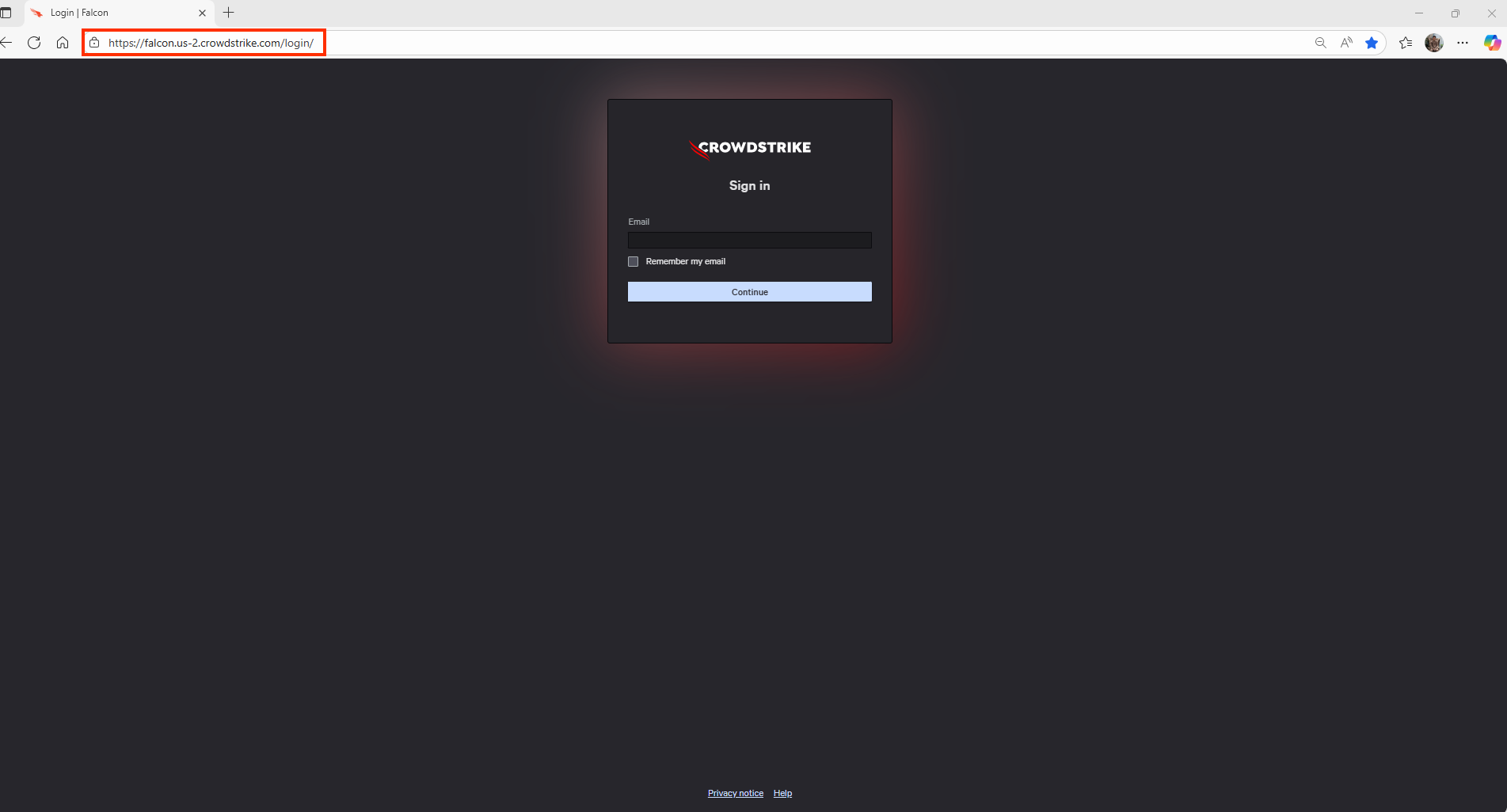
1. Log in to the CrowdStrike Falcon Console
- Access the Falcon Console using your organization’s standard login URL. Confirm which CrowdStrike cloud environment (e.g., US, EU, GovCloud) the customer is using
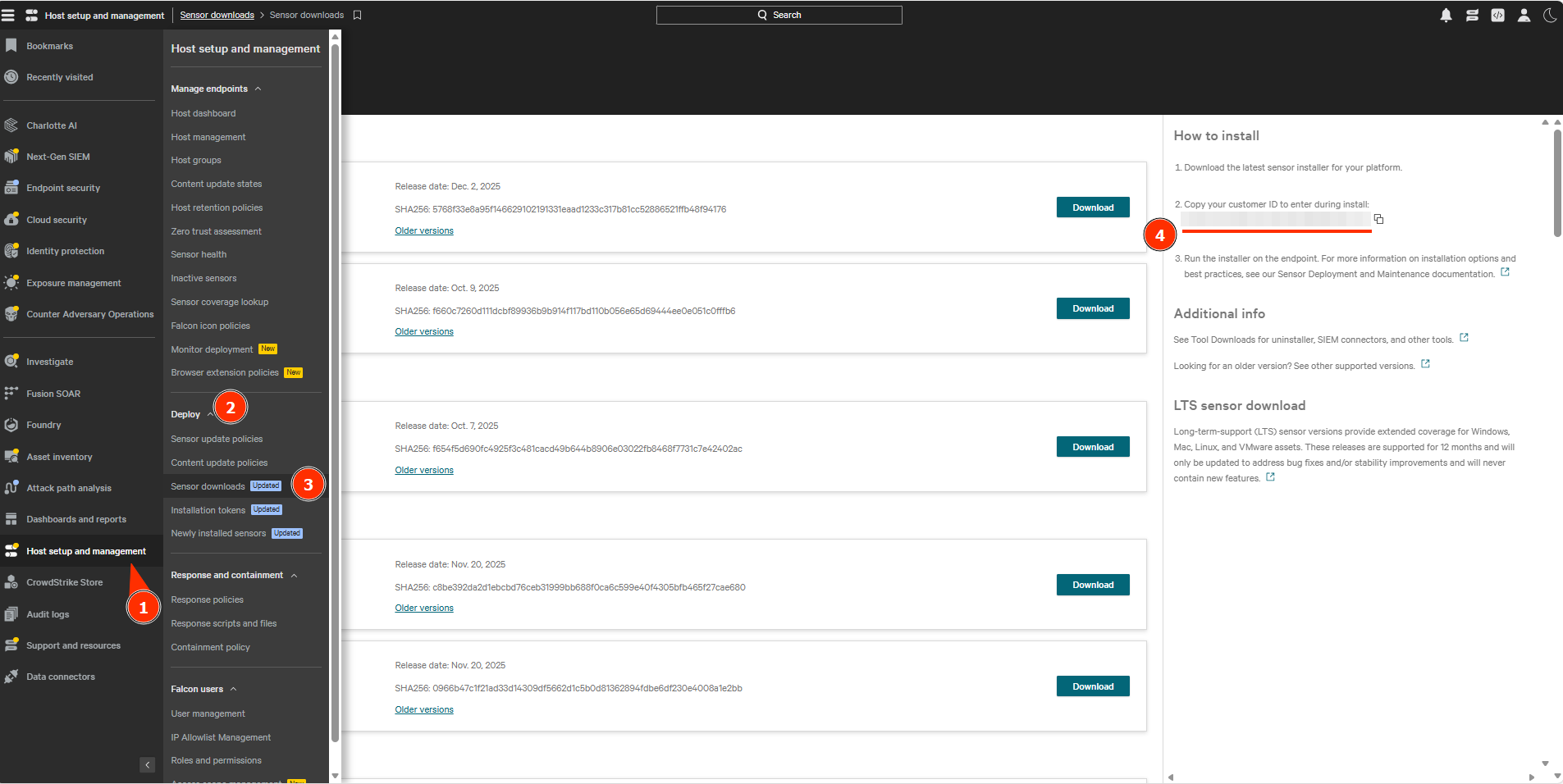
2. Retrieve the Customer’s CID
- Navigate to Host Setup and Management → Deploy → Sensor Download
- Copy the CID (Customer ID) for internal use and support escalation.
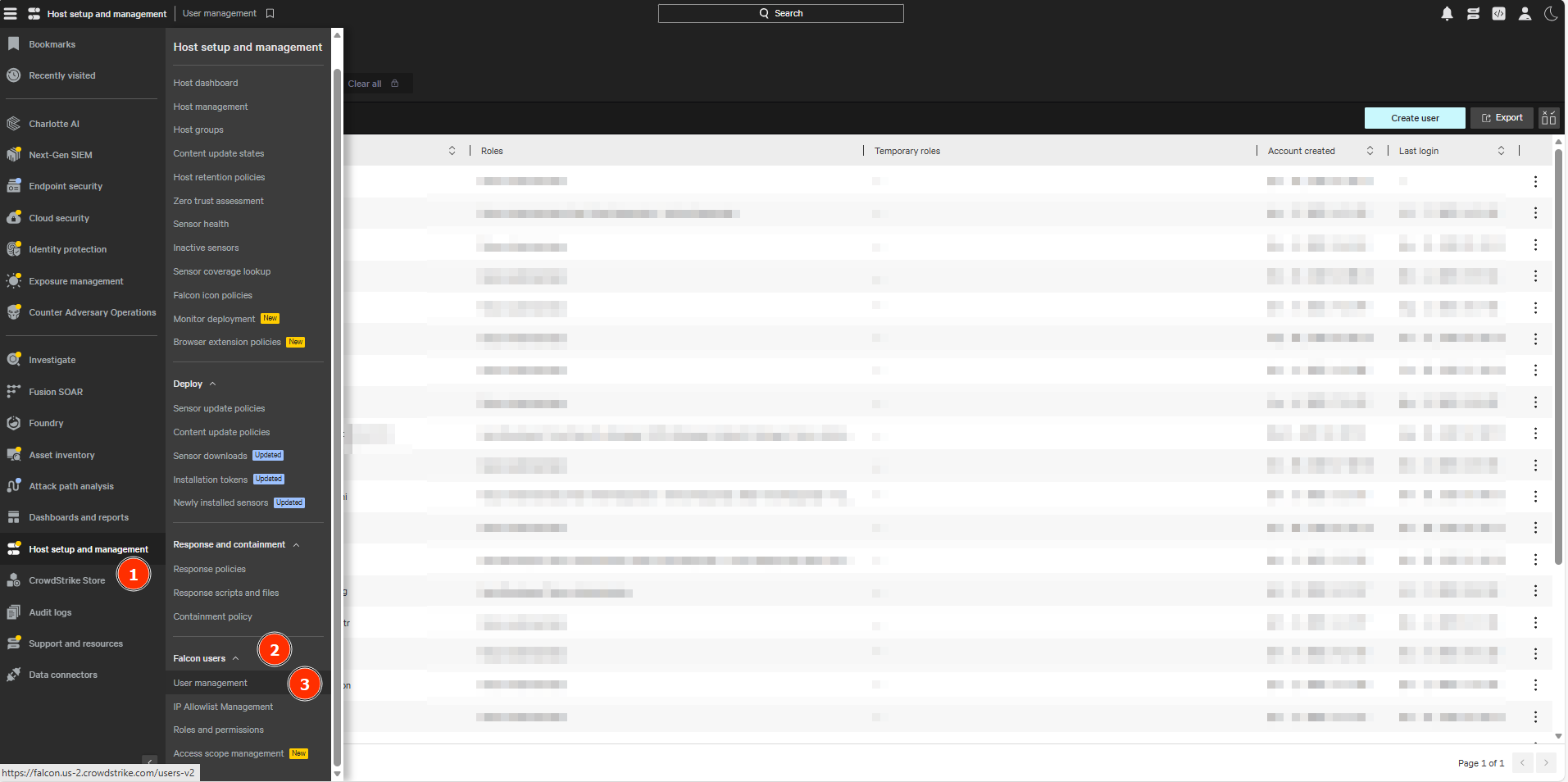
- Navigate to Host Setup and Management → Falcon users → User Management
- Confirm the user has a role that includes access to the required module(s).
- Adjust or assign the correct role if necessary.
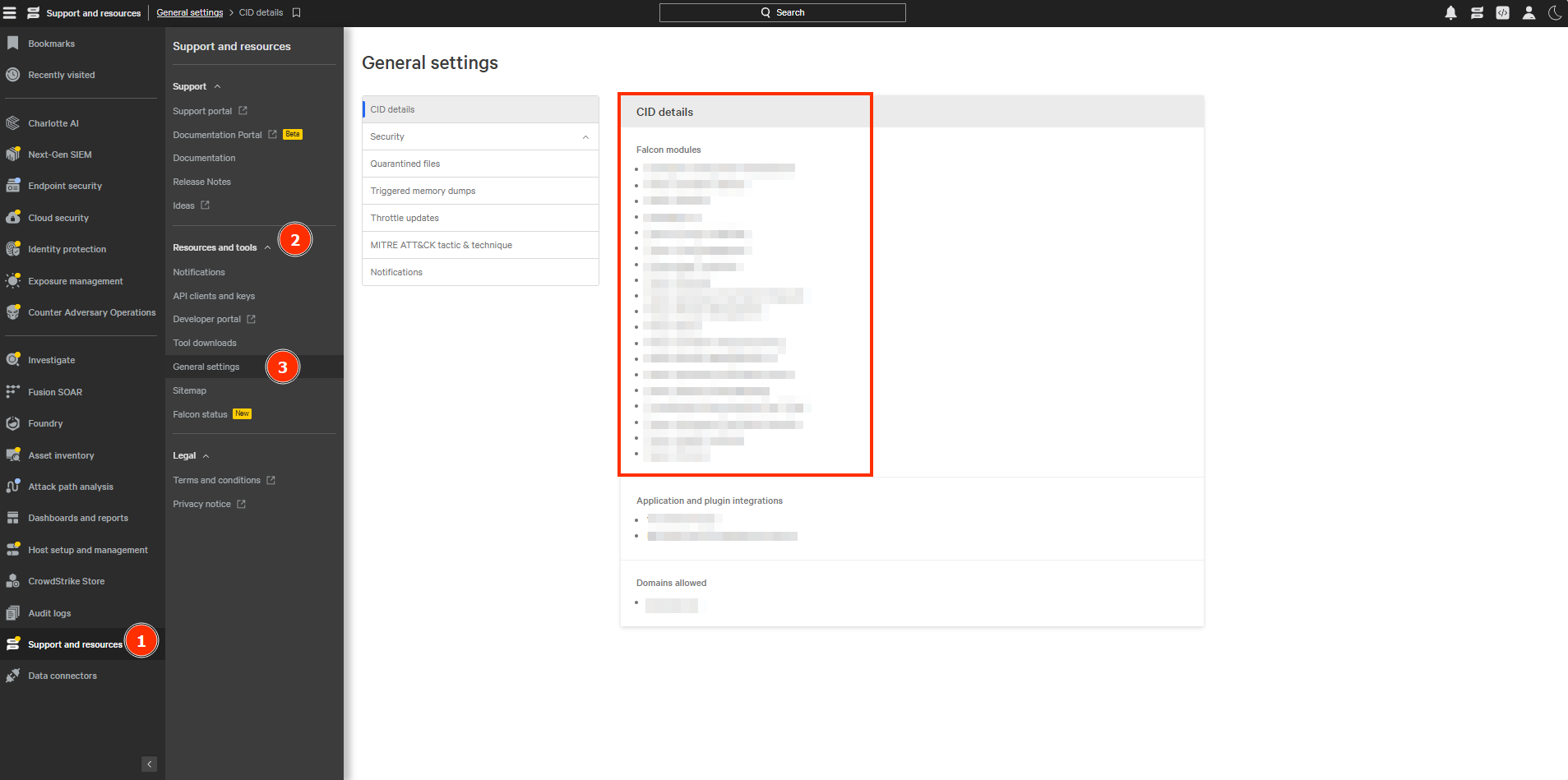
- Navigate to Support and resources → Resources and tools → General Settings.
- Confirm that the module(s) in question are shown as licensed.
- If the module is missing, it may indicate an entitlement issue.
5. Validate the Customer’s Subscription Plan / SKU List (Internal Step)
Before escalating to Support:
Compare the contract SKUs with what the Falcon Console shows as entitled.
If unclear, contact the Sales Team to confirm:
The customer’s subscribed modules
SKU list
Any recent upgrades, renewals, add-ons, or trial expirations
6. If Issue Persists — Open a Ticket with CrowdStrike Support
- Navigate to Support and resources → Support → Support Portal.
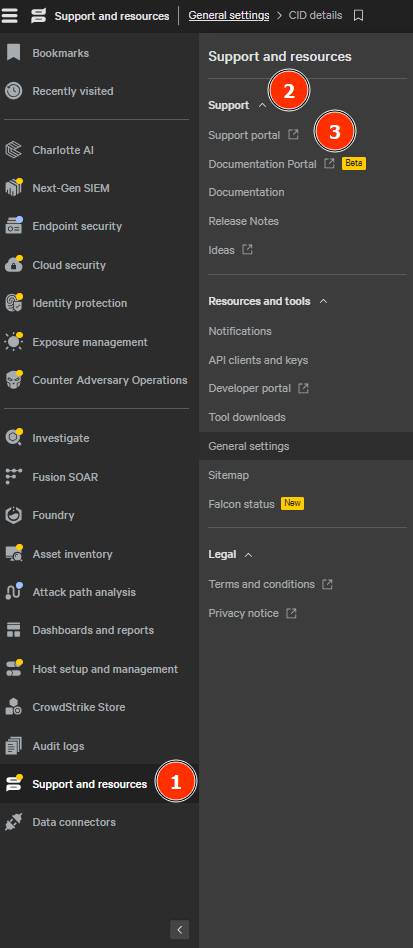
- Log in to the CrowdStrike Support Portal. Navigate to the Cases section.
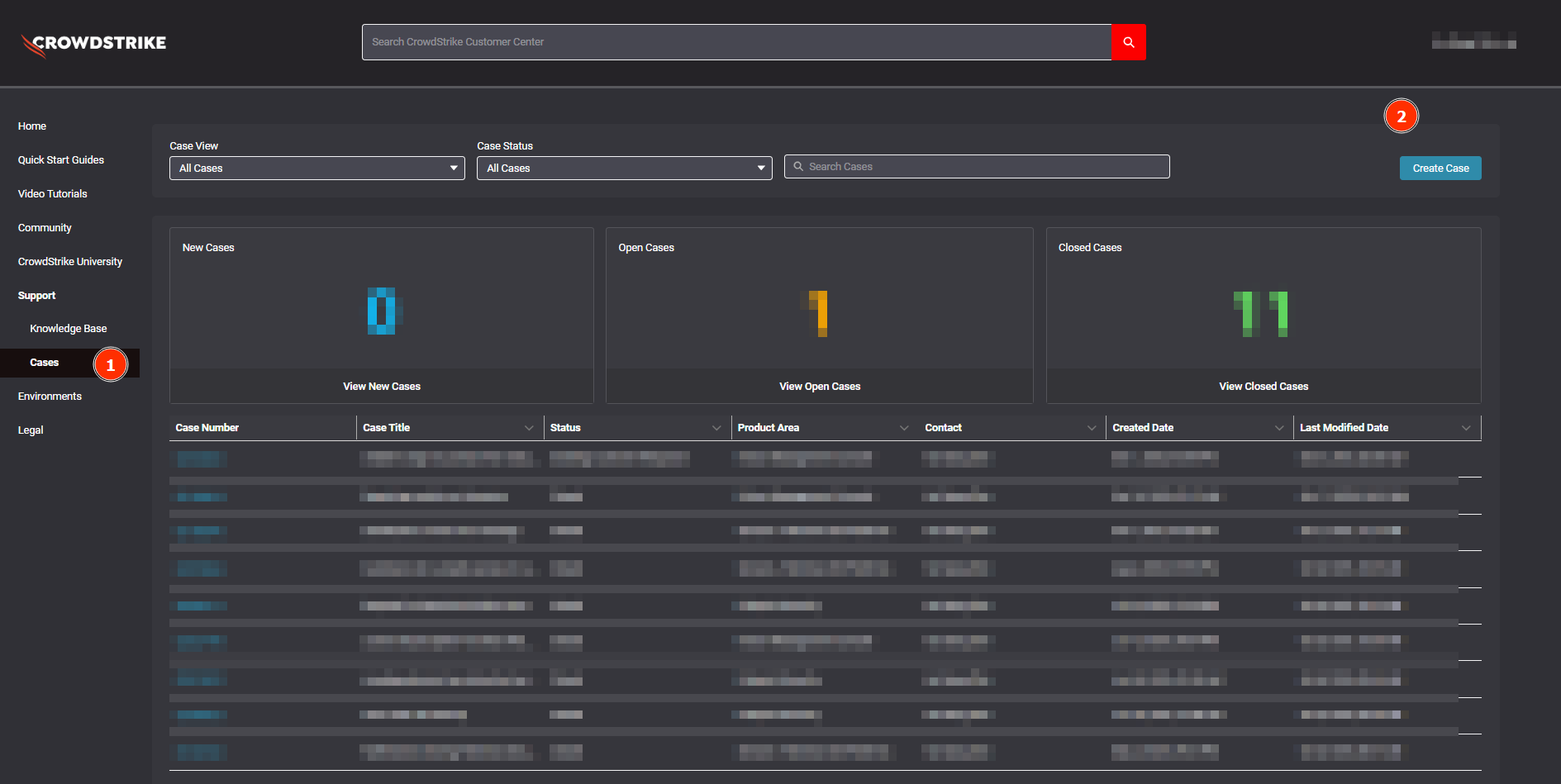
- Click “Create New Case”.
When submitting a support case for module access or entitlement issues, please ensure the following fields are completed accurately to facilitate a swift resolution:
- Case Title: Provide a concise but descriptive title summarizing the issue (e.g., "Missing Falcon Device Control Module Access for Customer X").
- Description: Provide a detailed description of the problem, mentioning that it may be due to provisioning issues. Include symptoms, troubleshooting steps already taken, and any relevant context.
- Customer ID (CID): Enter the customer’s unique CrowdStrike Customer ID. This is crucial for the support team to identify the correct account and entitlements. [ Navigate to Host Setup and Management → Deploy → Sensor Download to copy the CID (Customer ID).
- Preferred Working Time Zone: Select the customer’s time zone or preferred contact window to ensure communication is timely.
- Product Area: Select “Falcon Management Console” as the product area for entitlement or module access issues, to route the case to provisioning team.
- Case Participants: Optionally add colleagues or stakeholders who should be kept informed about the case progress.
You may include screenshots of the Falcon Console showing missing modules or error messages to help support quickly assess the issue.
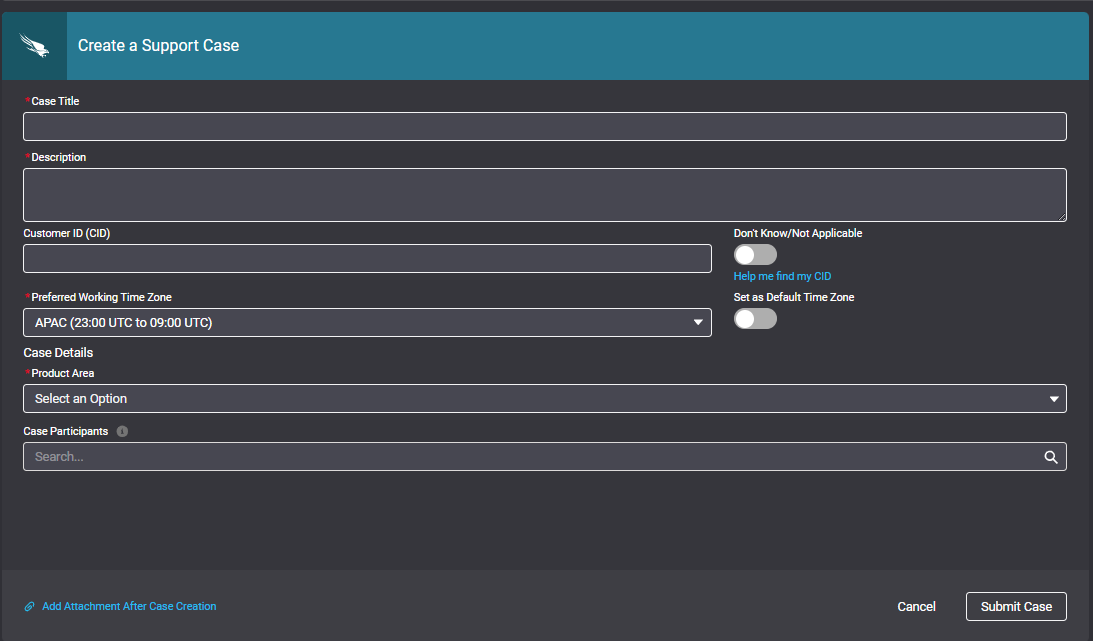
- CrowdStrike Falcon console.
Was this article helpful?
That’s Great!
Thank you for your feedback
Sorry! We couldn't be helpful
Thank you for your feedback
Feedback sent
We appreciate your effort and will try to fix the article