Title | Deployment Guide – Fortanix: Oracle TDE |
Product/System | Fortanix |
Company | Ask4key Sdn Bhd |
Version | 1.0 |
Date | 23rd February 2026 |
Author | Ariff |
Confidentiality | Internal Use Only |
Version | Date | Description | Author | Reviewed By | Approved by
|
1.0 | 23/02/26 | Initial version created | Ariff |
|
|
|
|
|
1 Introduction
This document relates to Fortanix deployment for Oracle Transparent Data Encryption (TDE). It includes the architecture and configuration steps.
2 Architecture Diagram
2.1 Fortanix Integration with Oracle
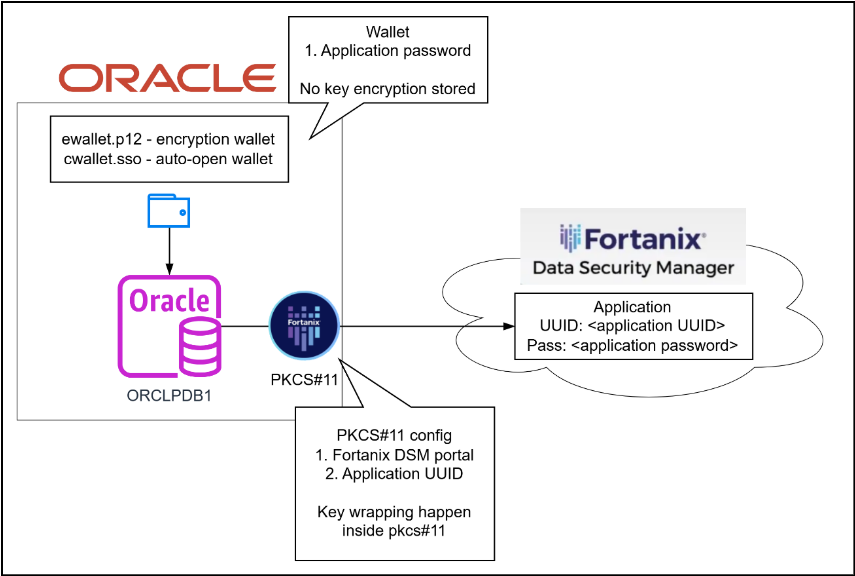
Figure 1: Oracle Architecture with Fortanix
Fortanix Data Security Manager (DSM)
Cloud service that enables you to securely generate, store, and use cryptographic keys.
PKCS#11
PKCS#11 is a library that provides a standard interface for cryptographic tokens such as hardware security modules (HSMs)
Oracle wallet
Encrypted file that contains application credentials (username and password) for connecting to third-party application (Fortanix)
Oracle PDB (pluggable database)
Portable collection of schemas, schema objects, and non-schema objects that appear to an Oracle Net client as a non-CDB (container database).
2.2 Fortanix: Master Encryption Key (MEK) Key Wrapping
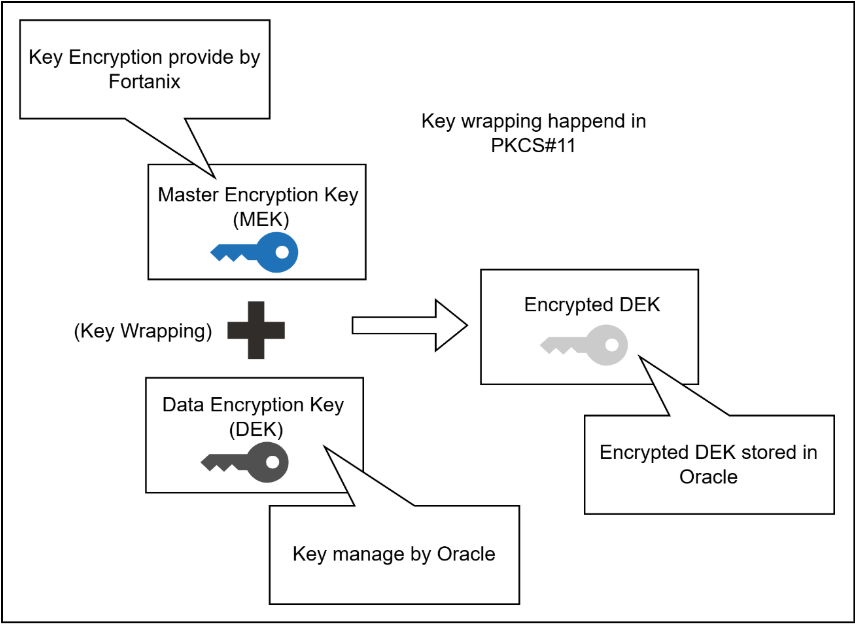
Figure 2: Key Wrapping for DEK
Master Encryption Key (MEK)
Key encryptions provided by Fortanix DSM are used to encrypt DEK
Data Encryption Key (DEK)
Key encryptions provided by Oracle to encrypt data in Oracle
2.3 Oracle: Column Encryption
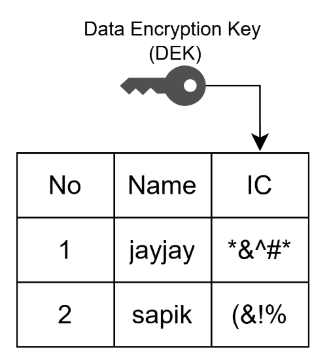
Figure 3: Oracle - Column Encryption
Column encryption – encrypts specific columns in a table rather than encrypting the entire tablespace.
2.4 Oracle: Tablespace Encryption
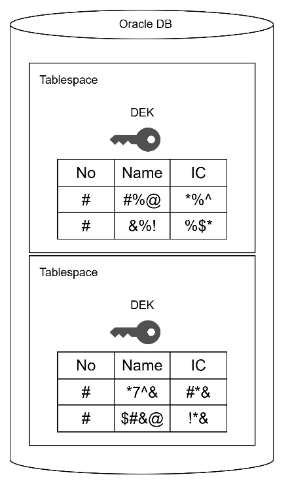
Figure 4: Oracle - Tablespace Encryption
Tablespace encryption - encrypts all data stored within a tablespace at rest
3 Integration Setup
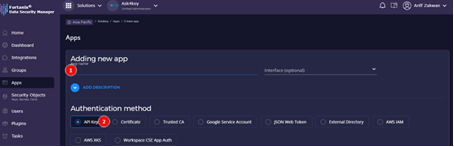
3.1 Fortanix: Application Creation
No. | Method |
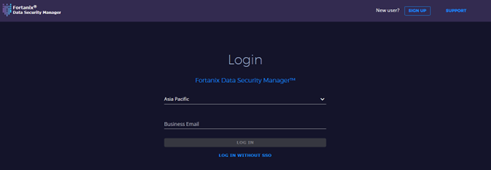
| Login to Fortanix DSM portal
|
|
|
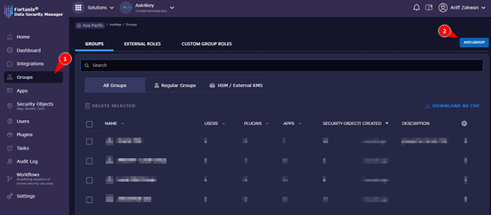
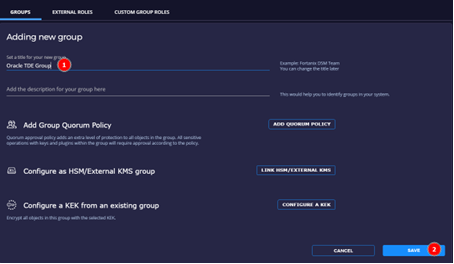
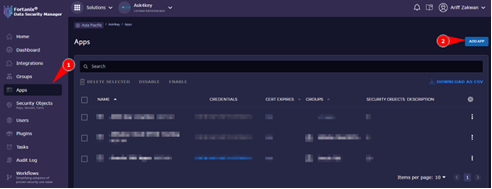
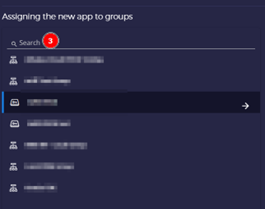
| Navigate to Apps tab and create a new application.
|
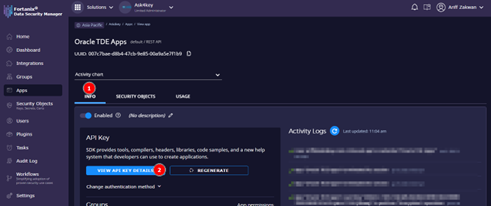
| Retrieving apps UUID and credentials.
|
3.2 Oracle: PKCS#11 Agent Installation
No. | Method |
Installation with RPM Package | |
| Create “em-agent.repo” in “/etc/yum.repos.d” with below input.
[em-agent] name=EM Agent - $basearch baseurl=https://download.fortanix.com/linux/yum/el7/x86_64 enabled=1 gpgkey=https://download.fortanix.com/linux/yum/fortanix.pub gpgcheck=1
|
| Run command to get the latest package from repo.
|
| Install the package using the command below.
|
| Locate the pkcs11.so file location and navigate to the directory.
|
| Copy the “fortanix_pkcs11.so” to oracle location as followed. Change
|
| Change ownership and file permission for “/opt/oracle".
|
| Creating pkcs11.conf file directory for Fortanix application
|
| Creating pkcs11.conf file for Fortanix application
api_endpoint = dsm portal (https://apac.smartkey.io) app_id = apps uuid (retrieve in apps) log filename = /etc/fortanix/pkcs11.log
api_endpoint = “https:// <fortanix_dsm_url>” app_id = “95XXX8-XXXX0-4442-XXXX5-XXXX9c” prevent_duplicate_opaque_objects = true retry_timeout_millis = 60000 [log] file = “<log filename>”
|
3.3 Wallet Creation
No. | Method |
| Ensure to connect to the session with “oracle” user.
|
| Identify the “$ORACLE_BASE” and “$ORACLE_SID”.
|
| Create wallet files with the directory below. Ensure the wallet owner is “oracle” user
|
| Login to sqlplus as sysdba user
|
| Set the wallet directory.
For RAC database use command below:
|
| Restart the DB to update the wallet configuration.
|
| Setting TDE configuration for wallet type
For RAC database use command below:
|
| Ensure all pdb are in open and write mode state.
|
3.4 Setting up Wallet Password
No. | Steps |
| Creating keystore.
|
| Configuring TDE Master Key
|
| In encounter issue in step 2. (ORA-46665) follow steps below. Run the command in each PDBs.
|
3.5 Setting up Auto-Login Wallet (for version 19c and above)
Some versions in 19c have issue with auto-login wallet
No. | Method |
| Check encryption wallet status.
|
| If wallet status is open, ensure it is closed. Ensure to connect to the CDS$ROOT session.
|
| Change the keystore type to software wallet.
|
| Run command below to create software keystore.
|
| Open the software keystore.
|
| Add DSM App password as secret in the software wallet
|
| Close the software keystore.
|
| Creating Auto-Login keystore
|
| To set wallet location to HSM backend by auto-login
For RAC database use command below:
|
| Restart the DB to verify the auto-login.
|
| Verify Auto-login wallet.
|
| In case of RAC, transfer “ewallet.p12” and “cwallet.sso” to all nodes of RAC at ($ORACLE_BASE/admin/$ORACLE_SID/wallet/tde)
|
3.6 Oracle: Rotate Master Key
3.6.1 Without Using Auto-Login Wallet
No. | Method |
Using Container Database | |
ADMINISTER KEY MANAGEMENT SET KEY IDENTIFIED BY "<DSM_APP_PASSWORD>" CONTAINER = ALL; | |
Using non-container Database | |
ADMINISTER KEY MANAGEMENT SET KEY IDENTIFIED BY "<DSM_APP_PASSWORD>"; | |
3.6.2 Using Auto-Login
No | Method |
Using Container Database | |
ADMINISTER KEY MANAGEMENT SET KEY FORCE KEYSTORE IDENTIFIED BY "<DSM_APP_PASSWORD>" CONTAINER = ALL; | |
Using Non-Container Database | |
ADMINISTER KEY MANAGEMENT SET KEY FORCE KEYSTORE IDENTIFIED BY "<DSM_APP_PASSWORD>"; | |
4 Applying Encryption
4.1 Column Encryption
No. | Method |
| Creating table with selective encrypted column (salary column only)
|
| Updating column in table to be encrypt (update empID to encrypt)
|
| Verify list of encrypted columns
|
| Re-Encrypt using different encryption algorithm.
|
4.2 Tablespace Encryption
No. | Method |
| Checking compatible. Only for 11.2.0.0 or higher
|
| If version compatible is lower run the following command
|
| Verifying DATAFILE.
|
| Create encrypted tablespace with encrypted default storage
|
5 Appendix & Reference
5.1 Glossary
Term | Meaning |
CDB | Container Database |
DEK | Data Encryption Key |
DSM | Data Security Manager |
HSM | Hardware Security Module |
MEK | Master Encryption Key |
PDB | Pluggable Database |
TDE | Transparent Database Encryption |
5.2 Tools & Resources
Fortanix Admin Portal: https://apac.smartkey.io/
Fortanix Support Portal: Fortanix
Fortanix Oracle TDE KB: Using Fortanix Data Security Manager with Oracle TDE
Was this article helpful?
That’s Great!
Thank you for your feedback
Sorry! We couldn't be helpful
Thank you for your feedback
Feedback sent
We appreciate your effort and will try to fix the article